• GPT 5.3 Codex is now on AI Gateway

    GPT 5.3 Codex is now available on AI Gateway. GPT 5.3 Codex brings together the coding strengths of GPT-5.2-Codex and the reasoning depth of GPT-5.2 in a single model that's 25% faster and more token-efficient.

    Built for long-running agentic work, the model handles research, tool use, and multi-step execution across the full software lifecycle, from debugging and deployment to product documents and data analysis. Additionally, you can steer it mid-task without losing context. For web development, it better understands underspecified prompts and defaults to more functional, production-ready output.

    To use this model, set model to openai/gpt-5.3-codex in the AI SDK.

    import { streamText } from 'ai';
    const result = streamText({
    model: 'openai/gpt-5.3-codex',
    prompt:
    `Research our current API architecture, identify performance
    bottlenecks, refactor the slow endpoints, add monitoring,
    and deploy the changes to staging.`,
    });

    AI Gateway provides a unified API for calling models, tracking usage and cost, and configuring retries, failover, and performance optimizations for higher-than-provider uptime. It includes built-in observability, Bring Your Own Key support, and intelligent provider routing with automatic retries.

    Learn more about AI Gateway, view the AI Gateway model leaderboard or try it in our model playground.


  • npm i chat – One codebase, every chat platform

    Building chatbots across multiple platforms traditionally requires maintaining separate codebases and handling individual platform APIs.

    Today, we're open sourcing the new Chat SDK in public beta. It's a unified TypeScript library that lets teams write bot logic once and deploy it to Slack, Microsoft Teams, Google Chat, Discord, GitHub, and Linear.

    The event-driven architecture includes type-safe handlers for mentions, messages, reactions, button clicks, and slash commands. Teams can build user interfaces using JSX cards and modals that render natively on each platform.

    The SDK handles distributed state management using pluggable adapters for Redis, ioredis, and in-memory storage.

    import { Chat } from "chat";
    import { createSlackAdapter } from "@chat-adapter/slack";
    import { createRedisState } from "@chat-adapter/state-redis";
    const bot = new Chat({
    userName: "mybot",
    adapters: {
    slack: createSlackAdapter(),
    },
    state: createRedisState(),
    });
    bot.onNewMention(async (thread) => {
    await thread.subscribe();
    await thread.post("Hello! I am listening to this thread.");
    });

    A simple example of Chat instance with a Slack adapter and Redis state that responds to new mentions.

    You can post messages to any provider with strings, objects, ASTs and even JSX!

    import { Card, CardText, Actions, Button } from "chat";
    await thread.post(
    <Card title="Order #1234">
    <CardText>Your order has been received!</CardText>
    <Actions>
    <Button id="approve" style="primary">Approve</Button>
    <Button id="reject" style="danger">Reject</Button>
    </Actions>
    </Card>
    );

    Chat SDK post() functions accept an AI SDK text stream, enabling real-time streaming of AI responses and other incremental content to chat platforms.

    import { ToolLoopAgent } from "ai";
    const agent = new ToolLoopAgent({
    model: "anthropic/claude-4.6-sonnet",
    instructions: "You are a helpful assistant.",
    });
    bot.onNewMention(async (thread, message) => {
    const result = await agent.stream({ prompt: message.text });
    await thread.post(result.textStream);
    });

    The framework starts with the core chat package and scales through modular platform adapters. Guides are available for building a Slack bot with Next.js and Redis, a Discord support bot with Nuxt, a GitHub bot with Hono, and automated code review bots.

    Explore the documentation to learn more.

    Looking for the chatbot template? It's now here.

  • Safely inject credentials in HTTP headers with Vercel Sandbox

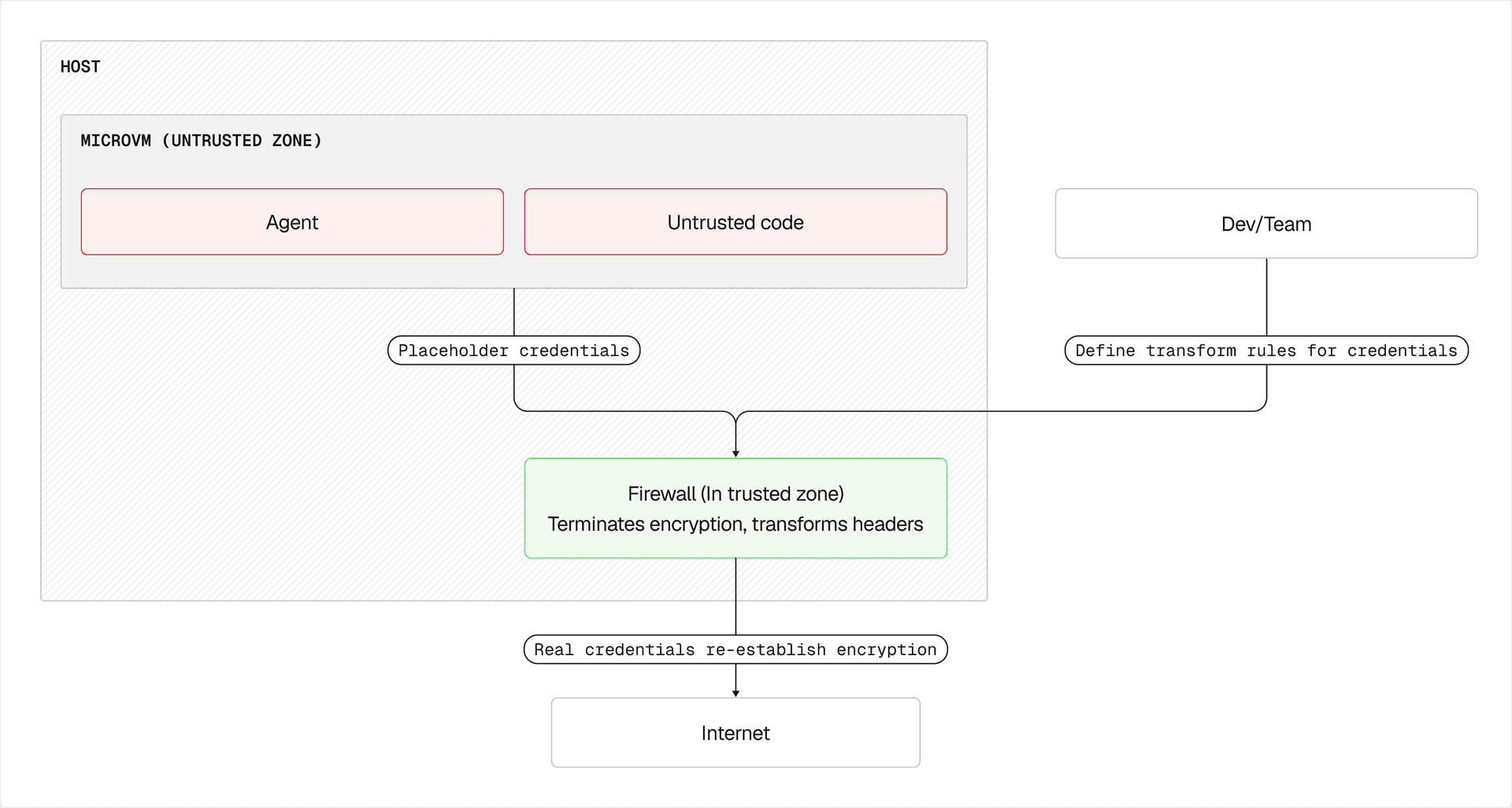
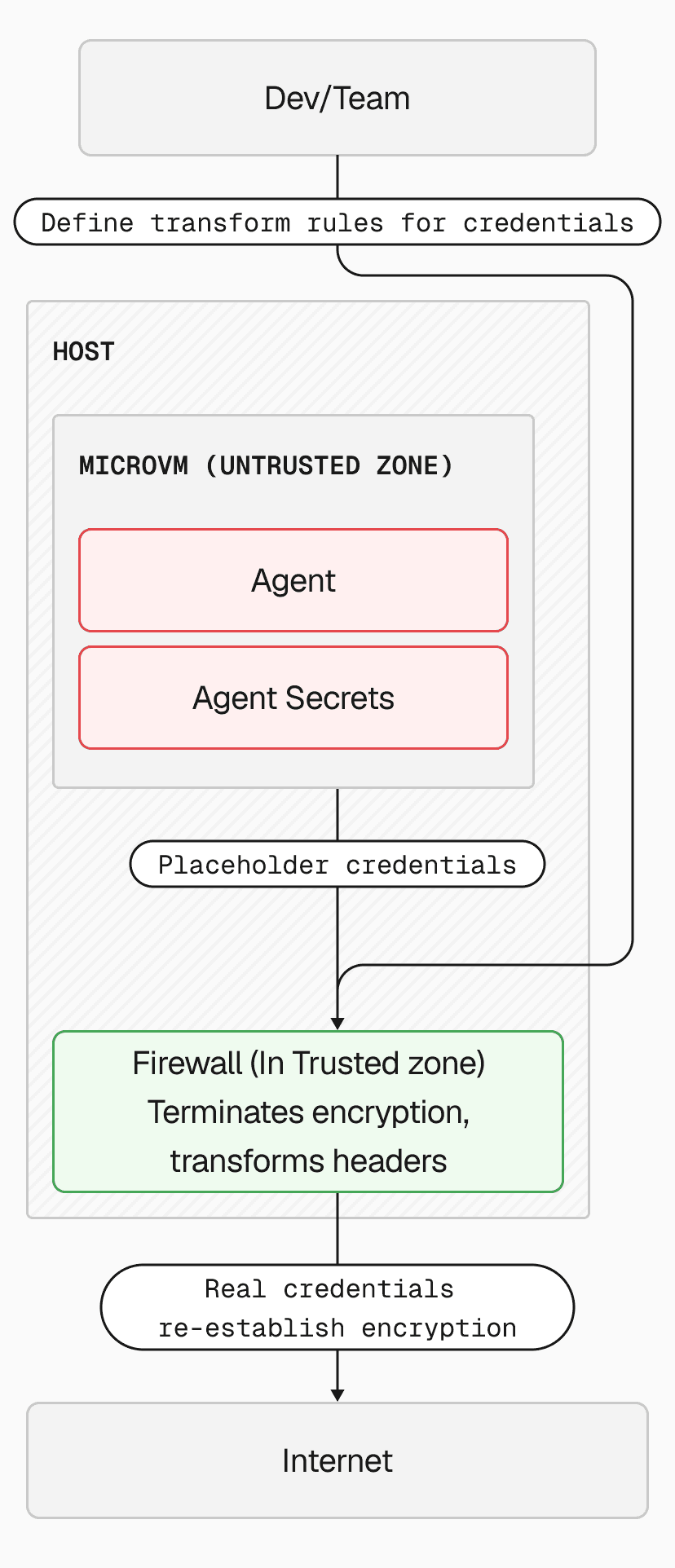
    Vercel Sandbox can now automatically inject HTTP headers into outbound requests from sandboxed code. This keeps API keys and tokens safely outside the sandbox VM boundary, so apps running inside the sandbox can call authenticated services without ever accessing the credentials.

    Header injection is configured as part of the network policy using transform. When the sandbox makes an HTTPS request to a matching domain, the firewall adds or replaces the specified headers before forwarding the request.

    const sandbox = await Sandbox.create({
    timeout: 300_000,
    networkPolicy: {
    allow: {
    "ai-gateway.vercel.sh": [{
    transform: [{
    headers: {
    authorization: `Bearer ${process.env.AI_GATEWAY_API_KEY}`
    }
    }],
    }],
    },
    },
    });
    // Code inside the sandbox calls AI Gateway without knowing the API key
    const result = await sandbox.runCommand('curl',
    ['-s', 'https://ai-gateway.vercel.sh/v1/models']
    );

    This is designed for AI agent workflows where prompt injection is a real threat. Even if an agent is compromised, there's nothing to exfiltrate, as the credentials only exist in a layer outside the VM.

    Injection rules work with all egress network policy configurations, including open internet access. To allow general traffic while injecting credentials for specific services:

    const sandbox = await Sandbox.create({
    networkPolicy: {
    allow: {
    "ai-gateway.vercel.sh": [{
    transform: [{
    headers: {
    Authorization: `Bearer ${process.env.AI_GATEWAY_API_KEY}`
    }
    }],
    }],
    "*.github.com": [{
    transform: [{
    headers: {
    Authorization: `Bearer ${process.env.GITHUB_TOKEN}`
    }
    }],
    }],
    // Allow traffic to all other domains.
    "*": []
    }
    }
    });

    Link to headingLive updates

    Like all network policy settings, injection rules can be updated on a running sandbox without restarting it. This enables multi-phase workflows, inject credentials during setup, then remove them before running untrusted code:

    // Phase 1: Clone repos with credentials
    await sandbox.updateNetworkPolicy({
    allow: {
    "api.github.com": [{
    transform: [{
    headers: {
    Authorization: `Bearer ${process.env.GITHUB_TOKEN}`
    }
    }],
    }],
    }
    });
    // ... clone repos, download data ...
    // Phase 2: Lock down before running untrusted code
    await sandbox.updateNetworkPolicy('deny-all');

    Link to headingKey highlights

    • Header overwrite: Injection applies to HTTP headers on outbound requests.

    • Full replacement: Injected headers overwrite any existing headers with the same name set by sandbox code, preventing the sandbox from substituting its own credentials.

    • Domain matching: Supports exact domains and wildcards (e.g., *.github.com). Injection only triggers when the outbound request matches.

    • Works with all policies: Combine injection rules with allow-all, or domain-specific allow lists.

    Available to all Pro and Enterprise customers. Learn more in the documentation.

    Valerian Roche, Rob Herley

  • Grok Imagine Video on AI Gateway

    Generate high-quality videos with natural motion and audio using xAI's Grok Imagine Video, now in AI Gateway. Try it out now via the v0 Grok Creative Studio, AI SDK 6 or by selecting the model in the AI Gateway playground.

    Grok Imagine is known for realistic motion and strong instruction following:

    • Fast Generation: Generates clips in seconds rather than minutes

    • Instruction Following: Understands complex prompts and follow-up instructions to tweak scenes

    • Video Editing: Transform existing videos by changing style, swapping objects, or altering scenes

    • Audio & Dialogue: Native audio generation with natural, expressive voices and accurate lip-sync

    Link to headingThree ways to get started

    Video generation is in beta and currently available for Pro and Enterprise plans and paid AI Gateway users.

    • v0 Grok Creative Studio: The v0 team created a template that is powered by AI Gateway to create and showcase Grok Video and Image generations.

    • AI SDK 6: Generate videos programmatically AI SDK 6's generateVideo.

    import { experimental_generateVideo as generateVideo } from 'ai';
    const { videos } = await generateVideo({
    model: 'xai/grok-imagine-video',
    prompt: 'A golden retriever catching a frisbee mid-air at the beach',
    });

    • Gateway Playground: Experiment with video models with no code in the configurable AI Gateway playground that's embedded in each model page. Compare providers, tweak prompts, and download results without writing code. To access, click any video gen model in the model list.

    Link to headingAvailable Model

    Model

    Description

    xai/grok-imagine-video

    Text-to-video, image-to-video, and video editing

    Link to headingSimple: Text-to-Video

    Generate a video from a text description.

    In this example, xai/grok-imagine-video is used to generate a video of 2 swans. Note that you can also specify the duration of the output.

    import { experimental_generateVideo as generateVideo } from 'ai';
    const { videos } = await generateVideo({
    model: 'xai/grok-imagine-video',
    prompt:
    `Two elegant white swans gliding on a misty lake at dawn, soft golden light,
    reflections on still water, romantic atmosphere, cinematic`,
    aspectRatio: '16:9',
    resolution: '1280x720',
    duration: 3,
    });

    Link to headingAdvanced: Reference-to-Video

    Transform an existing video into a new style:

    In this example, using a previous generation from Grok Imagine Video, the output was transformed into an animated watercolor style.

    The source video is used and edited, which is useful for style transfer, object swapping, and scene transformations.

    import { experimental_generateVideo as generateVideo } from 'ai';
    const { videos } = await generateVideo({
    model: 'xai/grok-imagine-video',
    prompt:
    'Transform into anime style, soft hand-painted look, warm dreamy atmosphere',
    providerOptions: {
    xai: {
    videoUrl: sourceVideo,
    },
    },
    });

    Link to headingLearn More

    For more examples and detailed configuration options for Grok Imagine Video, check out the Video Generation Documentation. You can also find simple getting started scripts with the Video Generation Quick Start.

  • Wan models on AI Gateway

    Generate stylized videos and transform existing footage with Alibaba's Wan models, now available through AI Gateway. Try them out now via AI SDK 6 or by selecting the models in the AI Gateway playground.

    Wan produces artistic videos with smooth motion and can use existing content to keep videos consistent:

    • Character Reference (R2V): Extract character appearance and voice from reference videos/images to generate new scenes

    • Flash Variants: Faster generation times for quick iterations

    • Flexible Resolutions: Support for 480p, 720p, and 1080p output

    Link to headingTwo ways to get started

    Video generation is in beta and currently available for Pro and Enterprise plans and paid AI Gateway users.

    • AI SDK 6: Generate videos programmatically AI SDK 6's generateVideo.

    import { experimental_generateVideo as generateVideo } from 'ai';
    const { videos } = await generateVideo({
    model: 'alibaba/wan-v2.6-t2v',
    prompt: 'Watercolor painting of a koi pond coming to life.',
    });

    • Gateway Playground: Experiment with video models with no code in the configurable AI Gateway playground that's embedded in each model page. Compare providers, tweak prompts, and download results without writing code. To access, click any video gen model in the model list.

    Link to headingAvailable Models

    Model

    Type

    Description

    alibaba/wan-v2.6-t2v

    Text-to-Video

    Generate videos from text prompts

    alibaba/wan-v2.6-i2v

    Image-to-Video

    Animate still images

    alibaba/wan-v2.6-i2v-flash

    Image-to-Video

    Fast image animation

    alibaba/wan-v2.6-r2v

    Reference-to-Video

    Character transfer from references

    alibaba/wan-v2.6-r2v-flash

    Reference-to-Video

    Fast style transfer

    alibaba/wan-v2.5-t2v-preview

    Text-to-Video

    Previous version

    Link to headingSimple: Text-to-Video with Audio

    Generate a stylized video from a text description.

    You can use detailed prompts and specify styles with the Wan models to achieve the desired output generation. The example here uses alibaba/wan-v2.6-t2v:

    import { experimental_generateVideo as generateVideo } from 'ai';
    const { videos } = await generateVideo({
    model: 'alibaba/wan-v2.6-t2v',
    prompt:
    `Animated rainy Tokyo street at night, anime style,
    neon signs reflecting on wet pavement, people with umbrellas
    walking past, red and blue lights glowing through the rain.`,
    resolution: '1280x720',
    duration: 5,
    });

    Link to headingAdvanced: Reference-to-Video

    Generate new scenes using characters extracted from reference images or videos.

    In this example, 2 reference images of dogs are used to generate the final video.

    Using alibaba/wan-v2.6-r2v-flash here, you can instruct the model to utilize the people/characters within the prompt. Wan suggests using character1, character2, etc. in the prompt for multi-reference to video to get the best results.

    import { experimental_generateVideo as generateVideo } from 'ai';
    const { videos } = await generateVideo({
    model: 'alibaba/wan-v2.6-r2v-flash',
    prompt:
    `character1 and character2 are playing together on the beach in San Francisco
    with the Golden Gate Bridge in the background, sunny day, waves crashing`,
    resolution: '1280x720',
    duration: 5,
    providerOptions: {
    alibaba: {
    referenceUrls: [shibaImage, yorkieImage],
    },
    },
    });

    Link to headingLearn More

    For more examples and detailed configuration options for Wan models, check out the Video Generation Documentation. You can also find simple getting started scripts with the Video Generation Quick Start.

  • Kling video models on AI Gateway

    Kling video models are now available in AI Gateway, including the newest Kling 3.0 models. Generate cinematic videos from text, images, or motion references with Kling's state-of-the-art video models, now available through AI Gateway and AI SDK.

    Kling models are known for their image to video models and multishot capabilities:

    • Image-to-Video Capabilities: Strong at animating still images into video clips

    • Realistic Motion and Physics: Known for coherent motion, facial expressions, and physical interactions

    • High Resolution Output: Supports up to 1080p generation (pro mode)

    • Multishot Narratives: Kling 3.0 can generate multi-scene videos from a single narrative prompt

    • Audio Generation: Create synchronized sound effects and ambient audio alongside your video

    • First & Last Frame Control: Specify both start and end frames for precise scene transitions

    Link to headingTwo ways to get started

    Video generation is in beta and currently available for Pro and Enterprise plans and paid AI Gateway users.

    • AI SDK 6: Generate videos programmatically AI SDK 6's generateVideo.

    import { experimental_generateVideo as generateVideo } from 'ai';
    const { videos } = await generateVideo({
    model: 'klingai/kling-v2.6-t2v',
    prompt: 'A chef plates a dessert with caramel drizzle. Kitchen ambiance.',
    });

    • Gateway Playground: Experiment with video models with no code in the configurable AI Gateway playground that's embedded in each model page. Compare providers, tweak prompts, and download results without writing code. To access, click any video gen model in the model list.

    Link to headingAvailable Models

    Model

    Type

    Description

    klingai/kling-v3.0-t2v

    Text-to-Video

    Latest generation, highest quality with multishot support

    klingai/kling-v3.0-i2v

    Image-to-Video, First-and-Last-Frame

    Animate images with v3 quality and multiple frames

    klingai/kling-v2.6-t2v

    Text-to-Video

    Audio generation support

    klingai/kling-v2.6-i2v

    Image-to-Video, First-and-Last-Frame

    Use images as reference

    klingai/kling-v2.5-turbo-t2v

    Text-to-Video

    Faster generation

    klingai/kling-v2.5-turbo-i2v

    Image-to-Video, First-and-Last-Frame

    Faster generation

    Link to headingSimple: Text-to-Video with Audio

    Generate a video from a text description.

    In this example, model klingai/kling-v3.0-t2v is used to generate a video of a cherry blossom tree with no inputs other than a simple text prompt.

    import { experimental_generateVideo as generateVideo } from 'ai';
    const { videos } = await generateVideo({
    model: 'klingai/kling-v3.0-t2v',
    prompt:
    `Cherry blossom petals falling in slow motion through golden sunlight,
    Japanese garden with a stone lantern, peaceful atmosphere, cinematic`,
    aspectRatio: '16:9',
    duration: 5,
    providerOptions: {
    klingai: {
    mode: 'pro',
    },
    },
    });

    Link to headingAdvanced: Multishot Video

    Generate a narrative video with multiple scenes with only a single prompt. Using Kling 3.0's multishot feature, the model intelligently cuts between shots to tell a complete story:

    The prompt is written as a narrative with multiple distinct scenes for the best results. shotType: 'intelligence' lets the model decide optimal shot composition and sound: 'on' generates synchronized audio for the entire video. Note that the prompt here is in the providerOptions since this functionality is specific to Kling. The Kling 3.0 models support this functionality: here klingai/kling-v3.0-t2v is used.

    import { experimental_generateVideo as generateVideo } from 'ai';
    const { videos } = await generateVideo({
    model: 'klingai/kling-v3.0-t2v',
    prompt: '',
    aspectRatio: '16:9',
    duration: 10,
    providerOptions: {
    klingai: {
    mode: 'pro',
    multiShot: true,
    shotType: 'intelligence',
    prompt:
    `Elephants walk across a golden savanna under gathering storm clouds.
    Lightning cracks in the distance. Rain begins to fall heavily.
    The herd finds shelter under acacia trees.
    The storm clears revealing a double rainbow.`,
    sound: 'on',
    },
    },
    });

    Link to headingAdvanced: First & Last Frame Control

    Control exactly how your video starts and ends by providing both a first frame and last frame image. This is perfect for time-lapse effects or precise scene transitions:

    These 2 images were provided as start and end frames.

    Using AI SDK 6, you can set image and lastFrameImage with your start and end frames. In this example, klingai/kling-v3.0-i2v is used for the model.

    import { experimental_generateVideo as generateVideo } from 'ai';
    const { videos } = await generateVideo({
    model: 'klingai/kling-v3.0-i2v',
    prompt: {
    image: startImage,
    text: `Time-lapse of a pink peony flower blooming.
    The tight bud slowly unfurls, petals gently separating and opening outward.
    Smooth organic movement. Soft natural lighting.`,
    },
    duration: 10,
    providerOptions: {
    klingai: {
    lastFrameImage: endImage,
    mode: 'pro',
    },
    },
    });

    Link to headingLearn More

    For more examples and detailed configuration options for Kling models, check out the Video Generation Documentation. You can also find simple getting started scripts with the Video Generation Quick Start.

  • Veo video models on AI Gateway

    Generate photorealistic videos with synchronized audio using Google's Veo models, now available through AI Gateway. Try them out now via AI SDK 6 or by selecting the models in the AI Gateway playground.

    Veo models are known for their cinematic quality and audio generation:

    • Native Audio Generation: Automatically generate realistic sound effects, ambient audio, and even dialogue that matches your video

    • Up to 1080p Resolution: Generate videos at 720p and 1080p

    • Photorealistic Quality: Realism for nature, wildlife, and cinematic scenes

    • Image-to-Video: Animate still photos with natural motion

    • Fast Mode: Quicker generation when you need rapid iterations

    Link to headingTwo ways to get started

    Video generation is in beta and currently available for Pro and Enterprise plans and paid AI Gateway users.

    • AI SDK 6: Generate videos programmatically AI SDK 6's generateVideo.

    import { experimental_generateVideo as generateVideo } from 'ai';
    const { videos } = await generateVideo({
    model: 'google/veo-3.1-generate-001',
    prompt: 'Woman sipping coffee by a rain-streaked window, cozy morning light.',
    });

    • Gateway Playground: Experiment with video models with no code in the configurable AI Gateway playground that's embedded in each model page. Compare providers, tweak prompts, and download results without writing code. To access, click any video gen model in the model list.

    Link to headingAvailable Models

    Model

    Description

    google/veo-3.1-generate-001

    Latest generation, highest quality

    google/veo-3.1-fast-generate-001

    Fast mode for quicker iterations

    google/veo-3.0-generate-001

    Full quality generation

    google/veo-3.0-fast-generate-001

    Fast mode generation

    Link to headingSimple: Text-to-Video with Audio

    Describe a scene and get a video.

    Generate a cinematic wildlife video with natural sound: here google/veo-3.1-generate-001 is used with generateAudio: true.

    import { experimental_generateVideo as generateVideo } from 'ai';
    const { videos } = await generateVideo({
    model: 'google/veo-3.1-generate-001',
    prompt:
    `Close-up of a great horned owl
    turning its head slowly in a moonlit forest.`,
    aspectRatio: '16:9',
    providerOptions: {
    vertex: { generateAudio: true },
    },
    });

    Link to headingAdvanced: Image-to-Video with Dialog

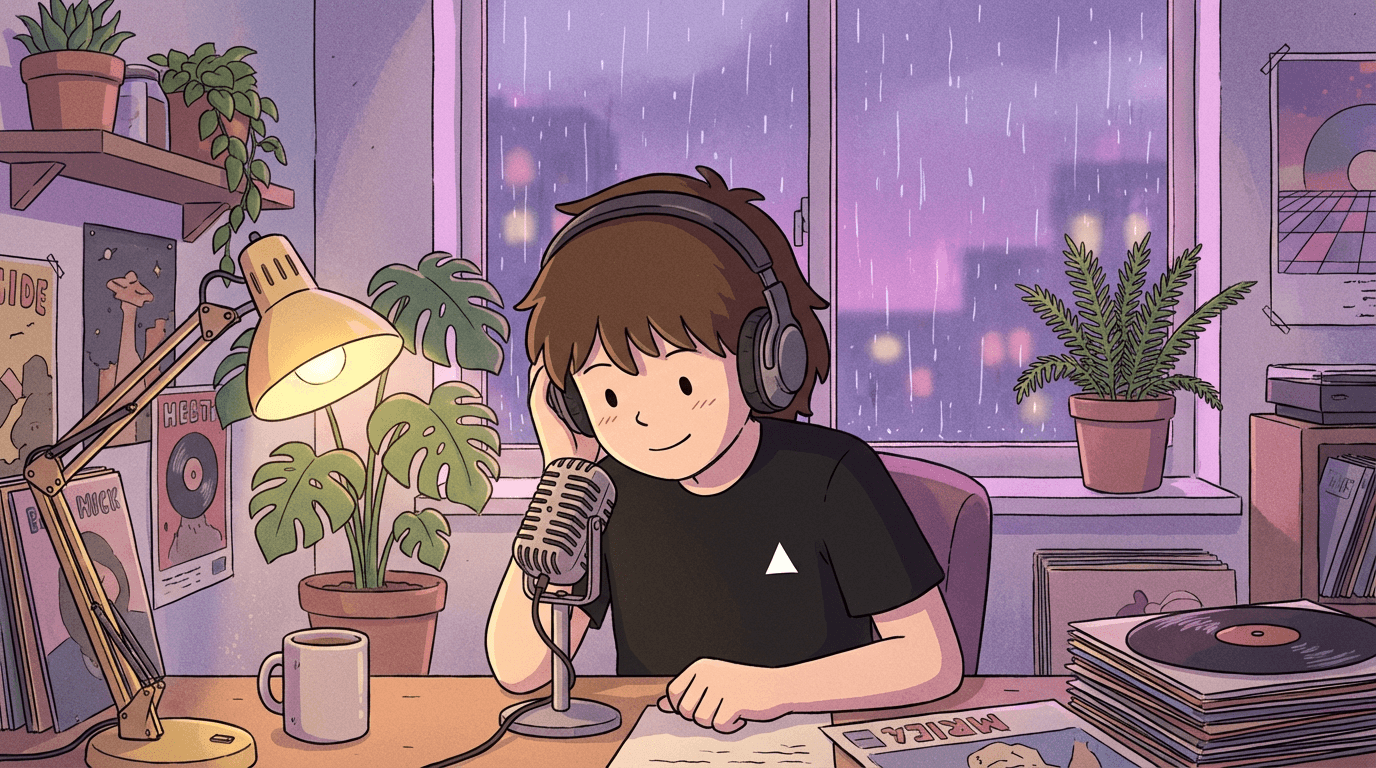
    A common workflow to ensure quality is generating a custom image with Gemini 3 Pro Image (Nano Banana Pro), then bringing it to life with Veo, complete with motion and spoken dialog.

    Starting image from Nano Banana Pro:

    Use prompts with image input with the Veo models for more control over the output. This example uses google/veo-3.1-generate-001, which supports image to video.

    import { experimental_generateVideo as generateVideo } from 'ai';
    const { videos } = await generateVideo({
    model: 'google/veo-3.1-generate-001',
    prompt: {
    image: imageUrl,
    text:
    `The podcast host says "Welcome back to the show! Today we are diving
    into something really exciting." with a friendly smile, rain falling on
    window, cozy atmosphere.`,
    },
    aspectRatio: '16:9',
    duration: 4,
    providerOptions: {
    vertex: { generateAudio: true },
    },
    });

    Link to headingLearn More

    For more examples and detailed configuration options for Veo models, check out the Video Generation Documentation. You can also find simple getting started scripts with the Video Generation Quick Start.